

Following is a screen shot of a typical page in the SUMMIT application describing the various sections of the page:
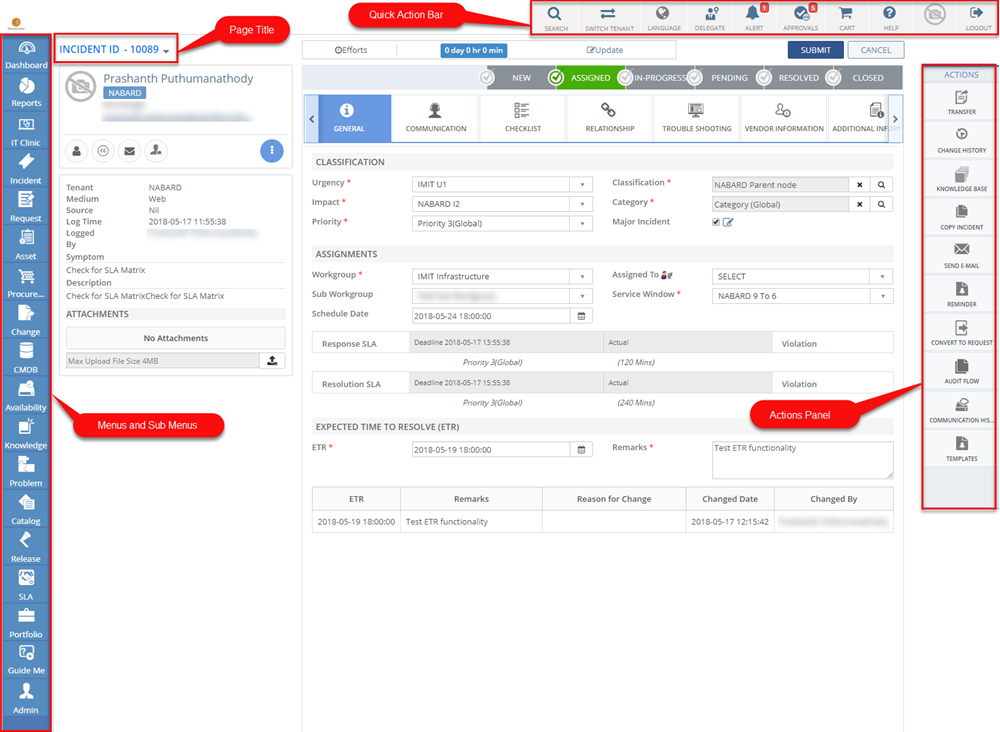
Figure: Page Layout of SUMMIT application pages
Menus and Submenus: Based on the subscribed module and your User Role, the menus and submenus are displayed at the left side of the SUMMIT application page.
| Icon | Description |
| SEARCH | Click the SEARCH icon to search for a specific text in the users (User), menu items (Menu), and modules, such as Incident, Request, Asset, Change, CMDB, Network, Knowledge, Procurement, and Server. For more information about searching text, see Global Search. |
| SWITCH TENANT | Click the SWITCH TENANT icon to switch to another tenant. This feature enables the users to access multiple Tenants simultaneously. This is only applicable to the users who have access to more than one Tenant. For more information about Switch Tenant, see Switching Tenant. |
| DELEGATE | Click the DELEGATE icon if you want to delegate your role and responsibilities to another user. This feature is available if you have subscribed for the Service Management module of the SUMMIT Suite. |
| LANGUAGE | Click the LANGUAGE icon to select a language in which you want the SUMMIT application pages to be translated. The SUMMIT application pages can be translated into up to 52 languages. For multi-language support, you need to be connected to the internet. The user receives e-mail notifications also in the same language as selected. |
| ALERT | Alerts are the Bulletins configured by the Administrators. These may be some announcement or information provided by the support team of an organization. Click the ALERT icon to view the Alerts. For more information about Alerts, see Alerts and Approvals. |
| APPROVALS | Click the APPROVALS icon to view the Service Requests, Problem Requests, Change Records, Knowledge Records, and Asset Management Records pending for your approval. For more information about Approvals, see Alerts and Approvals. |
| User Name | Displays the name of the logged in user. Click the image to view or update your profile. For more information, see Viewing/Updating Your Profile Details. |
| CART | Click the CART icon to view the SRs that are added to the Cart to create multiple SRs at a time. For more information about adding the SRs to the Cart, see Viewing and Updating My Cart Items. |
| HELP | Click the HELP icon to view the module-wise SUMMIT online help. |
| My Profile | Click the My Profile icon to view your profile or Sign in as another user. |
| LOGOUT | Click the LOGOUT icon to log out of the application. For information about logging out, see Logging Out. |