

Using Impersonation (Switch Users) option, users can log into the SUMMIT application as another user. For example, user A (Impersonating User) can log into the application as user B (Impersonated User). The users can log in as another user only if the Administrator has given them access to switch to the specific users on the SWITCH USER page. For more information on the SWITCH USER page, see Configuring Switch User.
If you have an Analyst access, you can also switch your role from Analyst to End User or End User to Analyst. For more information on getting an Analyst access, see Configuring Analysts.
To sign in as another User:
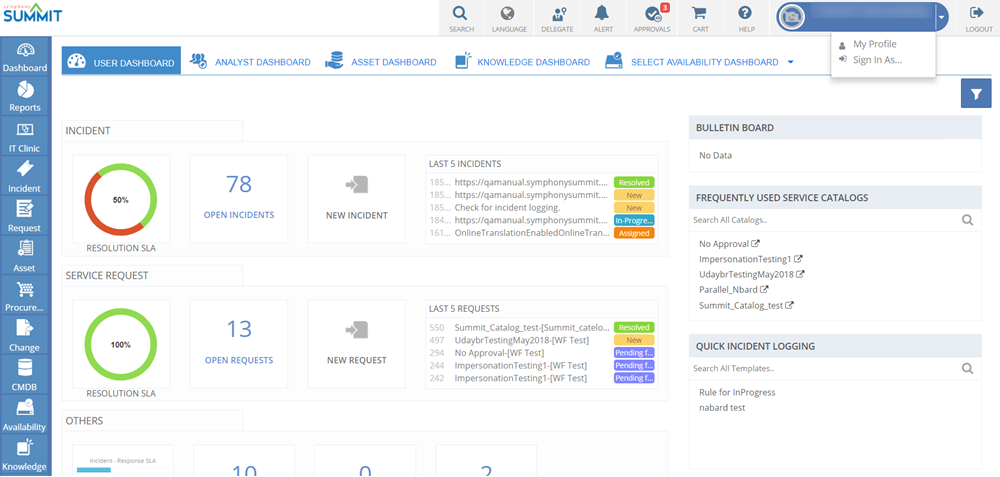
Figure: MY DASHBOARD page
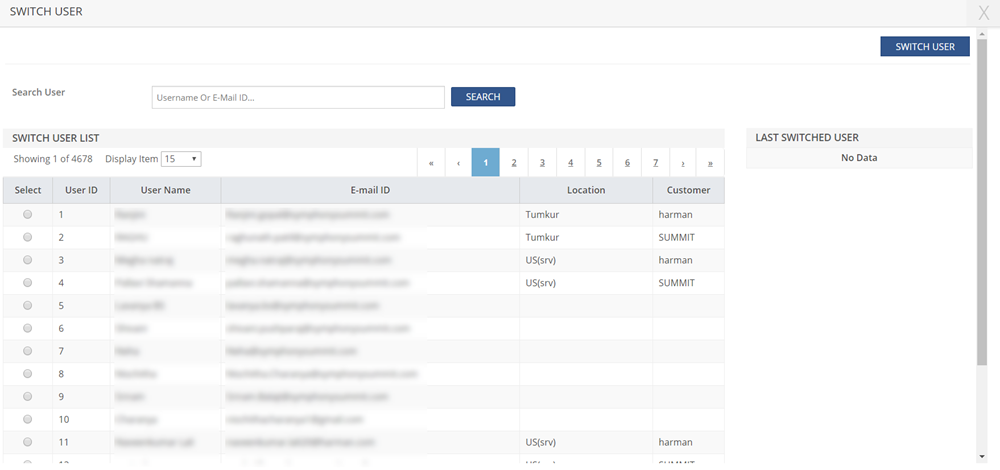
Figure: SWITCH USER pop-up page
| Note: After signing in as another User, you can again sign in as a different User following the same instructions. On the SWITCH USER pop-up page, you can also view the list of Users you have recently impersonated, under the LAST SWITCHED USER section. If you have signed in as another User, you can also view your profile in the list under the LAST SWITCHED USER section. |
To switch you role:
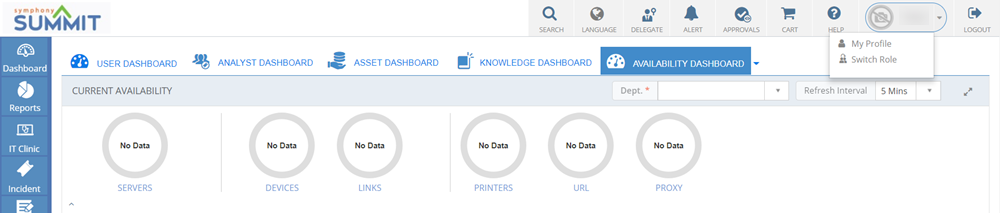
Figure: MY DASHBOARD page