Global Search
The Global Search icon is added
on the top panel of the Application where the users can search for a specific
text in the users (User), menu
items (Menu), and modules, such
as Incident, Request,
Asset, Change,
CMDB, Network,
Server, Procurement and
Knowledge.
To search for a specific text:
- Click the
 icon on the SUMMIT
Application. The following pop-up page is displayed.
icon on the SUMMIT
Application. The following pop-up page is displayed.

Figure: SEARCH
- Type in the text in the search box that you want
to search and click the
icon. The search results are displayed on the pop-up page.
- To view the search results for specific modules,
you can select the check boxes against the modules listed below the
text box.
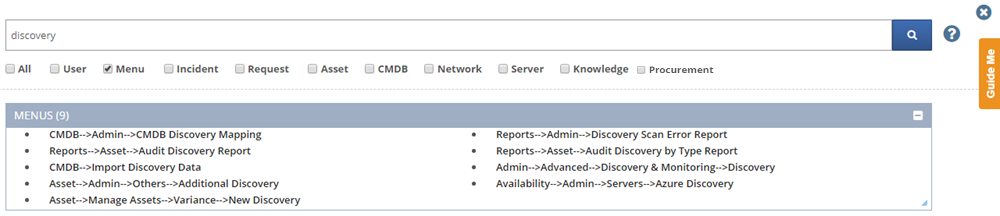
Figure: Displaying the Search Results
| Note: The Modules and
the related check boxes under the search box are
displayed based on the access of a user in the Role
Template. |
Conditions for Searching Text in the Search Box
You can perform the wildcard search by specifying the required text
as follows:
- To search for Ids, type in the ID (Incident ID,
SR ID, CR ID, CI ID, and so on) in the search box.
- To get search results related to a single word
throughout the Application, type in the word in the search box. Example: If you specify the word
Request in the search box,
the word Request is searched
throughout the Application and the search results are displayed group-wise.
If the word is part of a menu, the menu is displayed with a hyperlink,
by clicking on which you can access the related page.
- To get specific search results of a word or group
of words, type in the word(s) with inverted
commas. Example: If you want
to search for the report Rejected
Request Report, specify the text "Rejected
Request Report" in the search box.
- To get search results related to a Module
without selecting the check boxes, type in the Module and the Sub-Module
separated by a semicolon(;). Example:
If you want to search for Incident, specify the text
Incident;Service in
the search box.
- To do a wildcard search, type a part of a
text using inverted commas and asterisk. Example:
If you want to search for the word Software,
specify "Softw*" in the search
box.
- Search two or more words with OR condition. Example: Service or Closed or Summit/
"Service " OR "Closed " OR “Summit”. Based on
the selected options, all the records are displayed with search results
containing the words Service, Closed, and Summit.
- Search two or more words with AND condition. Example: Service AND Closed. Based
on the selected options, all the records are displayed with search
results containing the words Service and Closed. Every single search
result will contain both the words, Service and Closed.
- If Menu
check box is selected, the search criteria displays all the keywords
from the menu like Incident, Request, Asset, CMDB, and so on. For
Example, if you search for Discovery in the search box, all the menus
with Discovery keyword will be displayed.