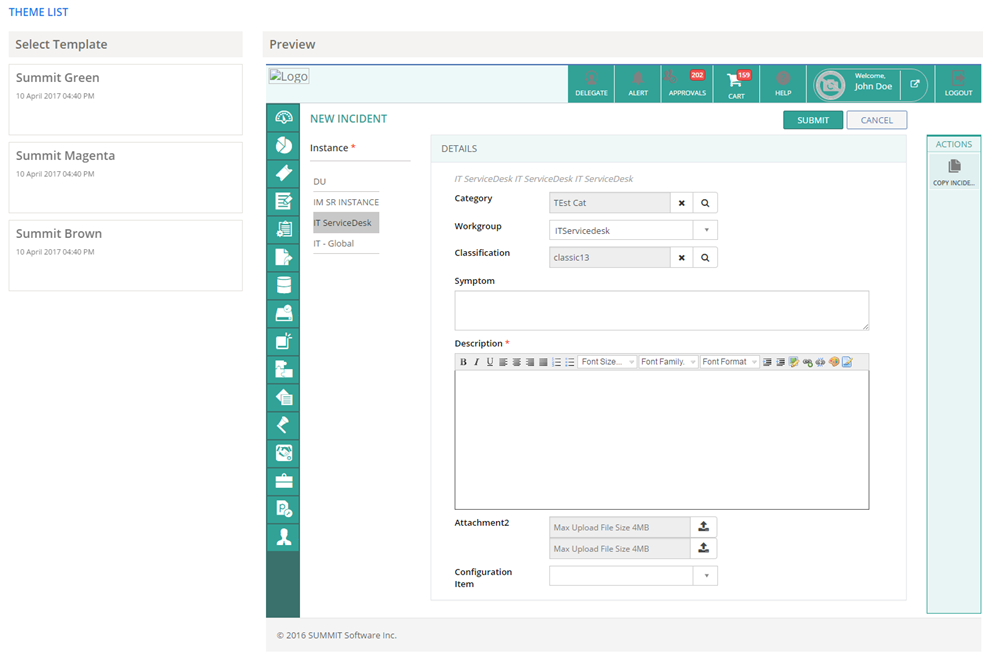
Previewing and Editing Themes
You can preview and/or edit a Theme that you configured on the THEME CONFIGURATION page. For more information
about configuring Themes, see Configuring
Theme.
To preview and/or edit a Theme:
- Select Admin
> Basic > Infrastructure >
Themes > Theme List.
The THEME LIST page is displayed.
- On the FILTERS pop-up
page, select a Tenant from the drop-down list.
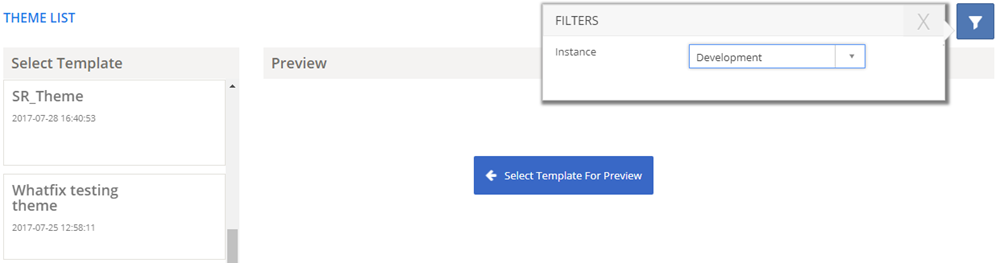
Figure: THEME LIST page
- In the Select
Template section, hover the mouse pointer over a Theme template
that you want to preview or edit. The EDIT
and PREVIEW buttons are displayed
on the selected template.
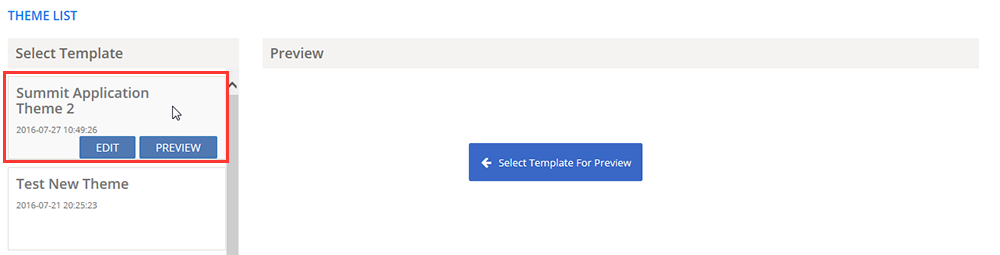
Figure: THEME CONFIGURATION page: Edit and
Preview buttons
- Click the EDIT
or PREVIEW button to edit
or preview the Theme, respectively.
- To edit a Theme,

 See
Screen Shot.
See
Screen Shot.
- To preview a Theme, See
Screen Shot.