

You can allocate period and Workgroup to a Shift. Based on this configuration, the Analysts of the configured Workgroup work in the allocated Shifts for the specified period of time.
To allocate Shifts:
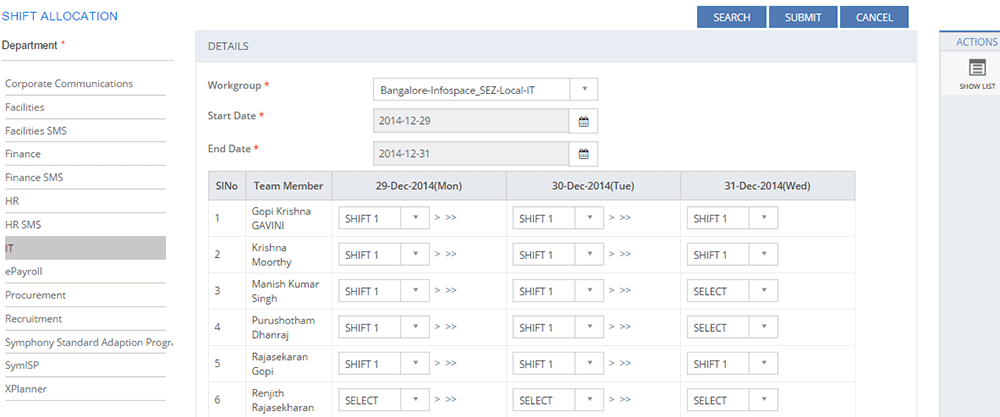
Figure: SHIFT ALLOCATION page
The following table describes the fields on the SHIFT ALLOCATION page:
| Field | Description |
| DETAILS | |
| Workgroup | Select the Workgroup/Sub Workgroup from the list
to allocate the Shift.
Note: The Sub Workgroups configured on the WORKGROUP page are also displayed in the drop-down list. To know more about how to configure the Sub Workgroups see, Configuring Workgroups. The configured Analysts for the selected Workgroup/Sub Workgroup are displayed under the Assigned To drop-down field on the INCIDENT ID and SERVICE REQUEST DETAIL pages. |
| Start Date | Select the start date for Shift Allocation. Click the Calender icon to select the date. |
| End Date | Select the end date for Shift Allocation for the selected Workgroup. Click the Calender icon to select the date. |
| Team Member | Displays a list of all the team members for the selected Workgroup. |
| Date Columns | The number for date columns depend upon the selected Start Date and End
Date.
Select the Shift from the list for the team member. You can click  icon to select the shift for
next date. You can click icon to select the shift for
next date. You can click  icon to select the Shift for all the selected date.
 |
This section explains all the icons displayed on the ACTIONS panel of the SHIFT ALLOCATION page.
SHOW LIST
Click SHOW LIST to display the LIST table showing all the configured Shift Masters for the selected Tenant.
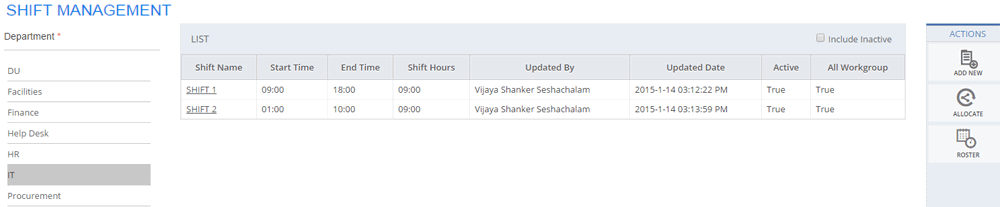
Figure: SHIFT MANAGEMENT page: List of shifts
Notes: When the configured
Shift Masters are displayed under the LIST
table, the ADD NEW, ALLOCATE,
ROSTER actions are displayed on the ACTIONS
panel.
|