

Proxy authentication is applicable only for Mobile Application
To Configure Proxy:
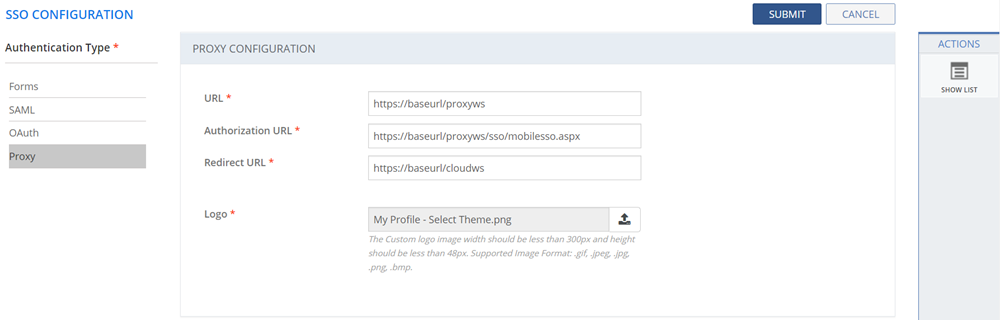
The following table describes the fields on the SSO CONFIGURATION page:
| Fields | Description |
| URL | Specify the Mobile Web Service URL. Example: https://baseurl/proxyws
The following key should be added in the Web Config File of hosted Proxy Web Service : <add key="RedirectMobileWebServiceURL" value="https://baseurl/cloudws/v560/"/> <add key="App:IsProxyServer" value="True" /> |
| Authorization URL | Specify the Authorization URL. Example: https://baseurl/proxyws/sso/mobilesso.aspx |
| Redirect URL | Specify the Redirect URL. This is the cloud Mobile Web Service URL. Example: https://baseurl/cloudws |
| Logo | Upload a logo. The uploaded logo is displayed on the Login Screen. The logo image width should be less than 300px and height should be less than 48px. Supported Image formats are .gif, .jpeg, .jpg, .png, .bmp. |
This section explains all the icons displayed on the ACTIONS panel of the SSO CONFIGURATION page.
SHOW LIST
Click SHOW LIST to display the LIST table showing all the SSO Configurations in the SUMMIT application.

Page: Show List Page