

You can define the Response SLA and Resolution SLA for a specific Customer, location, and Tenant and define the SLA Matrix for a Customer. You can also configure Response SLA and Resolution SLA for a specific Vendor, location, and Tenant and define the SLA Matrix for a Vendor.
To configure Customer Matrix:
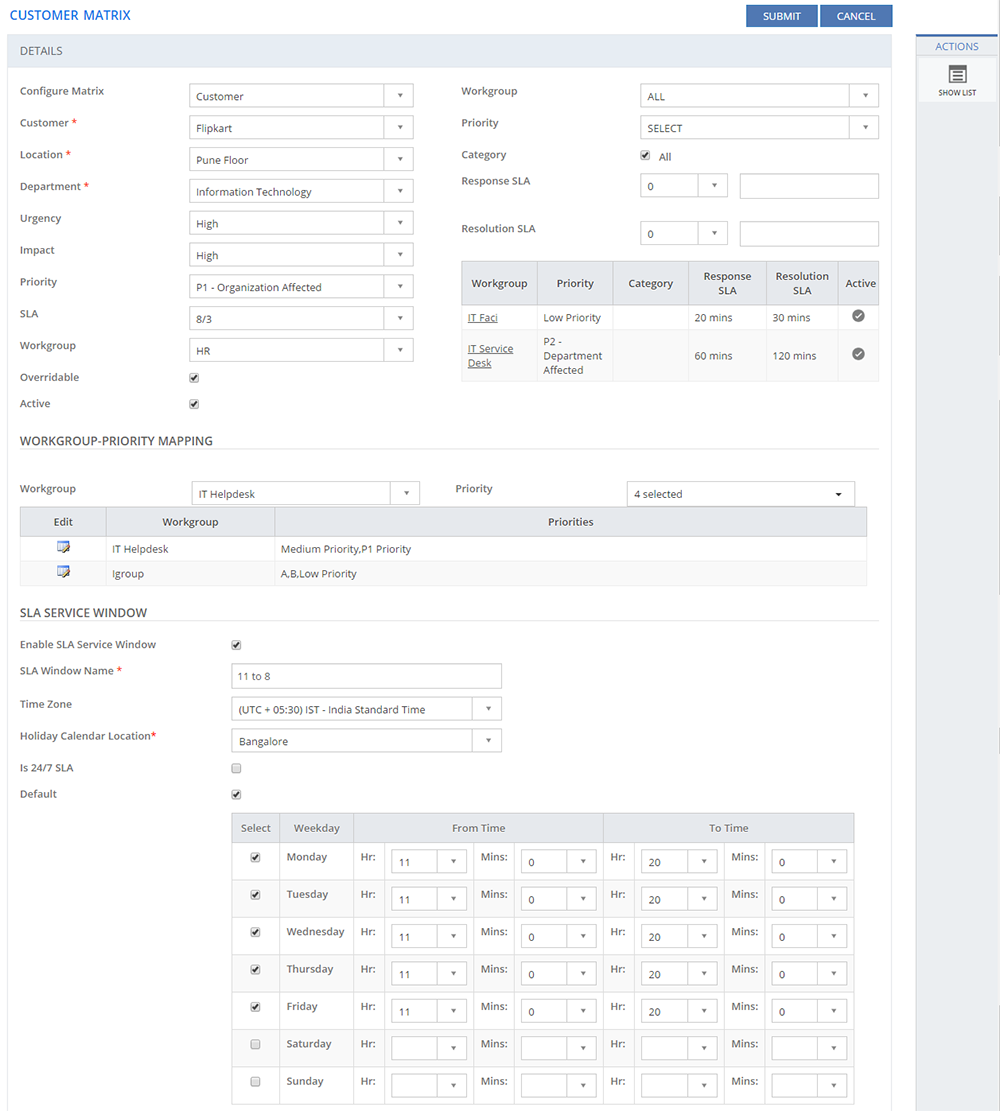
Figure: CUSTOMER MATRIX page
The following table describes the fields on the CUSTOMER MATRIX page:
| Fields | Description |
| DETAILS | |
| Configure Matrix | Lists two values, Customer and Vendor. Select the required option for the Customer Matrix. Based on the option selected the fields are displayed on the page. |
| Customer | This field is displayed only when you select the Configure Matrix as Customer. Lists the configured customers. Select the Customer for which you want to add the Customer SLA Matrix. If you select Configure Matrix as Vendor, the Vendor field is displayed listing all the configured vendors. Select the vendor for which you want to add the Vendor SLA Matrix. |
| Location | Select the location for which the SLA Matrix is configured. |
| Category | Select the Category for which the SLA Matrix is applicable. |
| Tenant | Select the Tenant for which the SLA Matrix is configured. |
| Urgency | Select the Urgency for the Incident |
| Impact | Select the Impact for the Incident. |
| Priority | Select the Priority value for the Incident. |
| SLA | Select the SLA. |
| Workgroup | Select the Workgroup to which the Incident should be assigned. |
| Overridable | If selected, the Overridable option is enabled, which means the Analysts can override the configured values and make changes, if required |
| Response SLA | Specify the Response SLA time. |
| Resolution SLA | Specify the Resolution SLA time. |
| WORKGROUP-PRIORITY MAPPING | |
| Workgroup | Select the Workgroup from the drop-down list for which you want to map the Priority. |
| Priority | Select the Priority from the drop-down list that you want to map with the selected Workgroup. You can select multiple Priorities from the drop-down list. The selected Priorities along with the default Priority are displayed to the Analyst on the INCIDENT DETAILS page. For more information about the INCIDENT DETAILS page, see SUMMIT Service Management Online Help. |
| Edit | Click the Edit icon to edit the Priorities for the selected Workgroup. |
| SLA SERVICE WINDOW | |
| Enable SLA Service Window | If selected, the SLA Service window is enabled. |
| SLA Window Name | Type in the SLA Window name. For example:24/7 |
| Time Zone | Select the Time zone from the list. |
| Holiday Calendar Location | Select the Holiday Calendar location from the list. |
| Is 24/7 SLA | Select this check box to indicate that the SLA is 24-hour services during a week. |
| Default | Select the check box to configure the SLA Service as default. |
| Service Window | Select the check boxes to define any other SLA Service windows other than the 24/7 window. For example 24/5, 12/ 5, 9/5 and so on. Based on the SLA Window you want to define, select the Weekday, From Time and To Time. |
This section explains all the icons displayed on the ACTIONS panel of the CUSTOMER MATRIX page.
SHOW LIST
Click SHOW LIST to display the LIST table showing all the configured. Customer/Vendor SLA Matrices.

Figure: CUSTOMER MATRIX page: List of Customer Matrixes
| Note: When the Customer/Vendor SLA Matrices are displayed under the LIST table, the ADD NEW action is displayed on the ACTIONS panel. Click ADD NEW to configure a new Customer/Vendor SLA Matrix. |